Mine with Yomitan, no Anki needed
Add words to Flashfriend while you read in your browser, without Anki or AnkiConnect.
Reading something in Mandarin, Japanese, Spanish or French and spot a word you want to learn? With Yomitan connected, one click sends it to your Flashfriend Inbox, along with the sentence you found it in and how it sounds. When you’re ready, you make its card in Flashfriend, with a picture that’s yours. You don’t need Anki or AnkiConnect: Flashfriend answers Yomitan itself.
It takes about five minutes to set up, and you only do it once. Flashfriend has these steps too, with the address ready to copy: Settings › Add words from other apps › Step-by-step guide for Yomitan.
What you need
- A computer with Chrome, Edge or Firefox.
- Yomitan, with a dictionary for your language added (for Japanese, JMdict or Jitendex).
- Your Flashfriend account.
You don’t need Anki. Yomitan was made to work with Anki, but it’s just as happy talking to Flashfriend.
Set it up
1. Make a key in Flashfriend
In Flashfriend, go to Settings › Add words from other apps. Give your key a name you’ll recognise, like Yomitan on my laptop, and tap Make a key.
Keep this screen open: you’ll copy two things from it in a moment. Flashfriend only shows the key once, but don’t worry if you lose it. You can always make a new one.
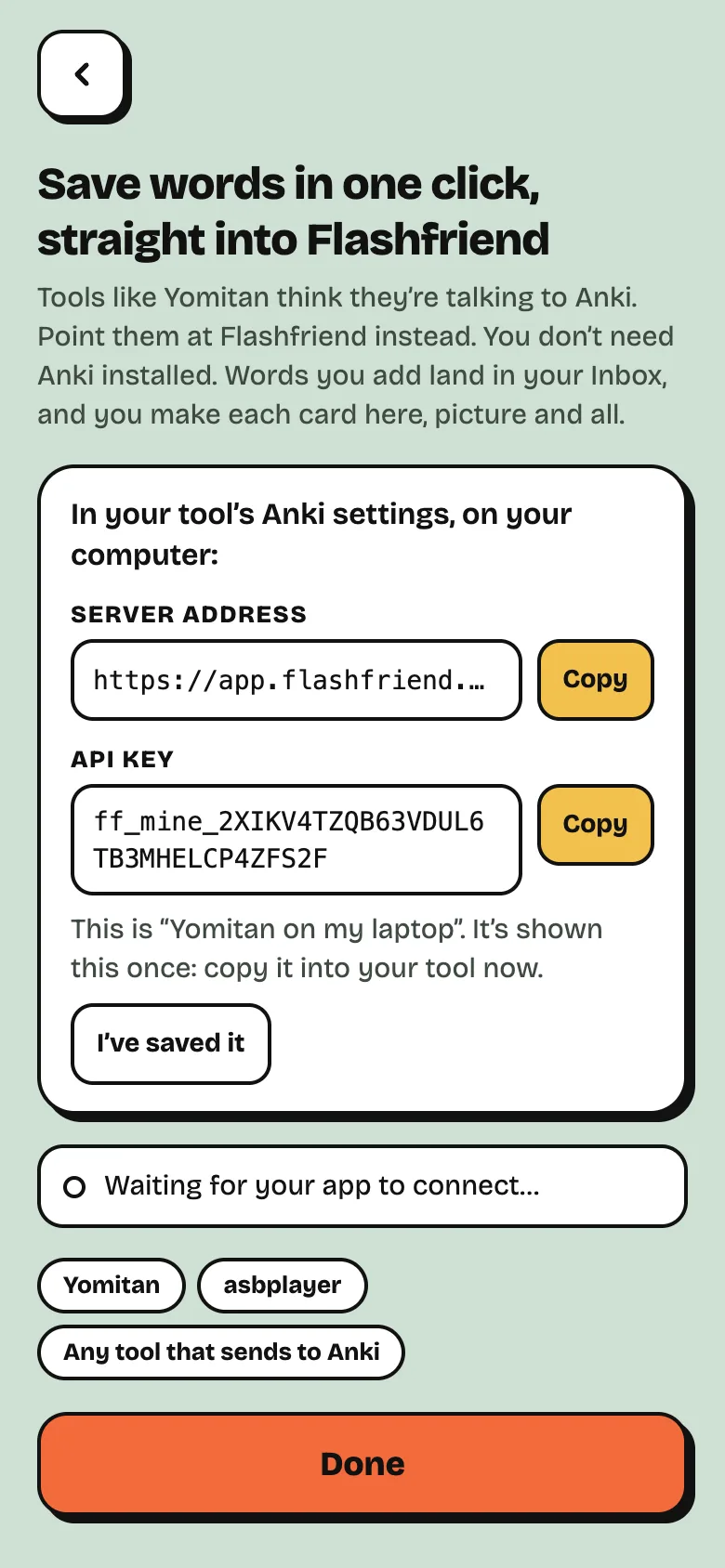
2. Tell Yomitan where to send words
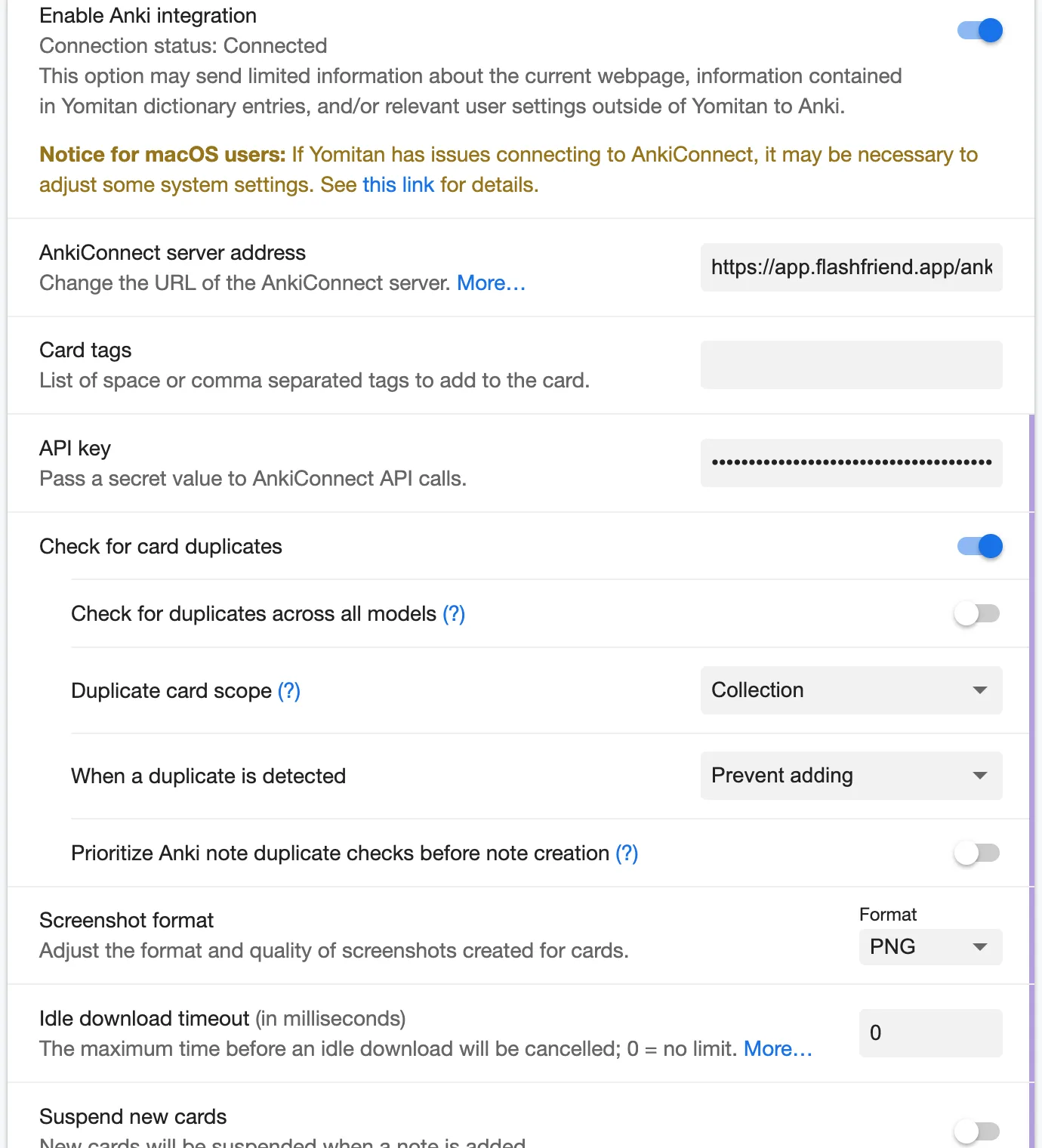
Open Yomitan’s settings: click its icon in your browser’s toolbar, then the cog. Then:
- Turn on Advanced, at the bottom left. Yomitan hides the API key setting until you do.
- Go to Anki and turn on Enable Anki integration.
- Copy the Server address from Flashfriend into AnkiConnect server address. It’s
https://app.flashfriend.app/anki. - Copy your API key from Flashfriend into API key.
Yomitan should now say Connection status: Connected, and Flashfriend will say Connected: Yomitan too.
3. Choose where words go
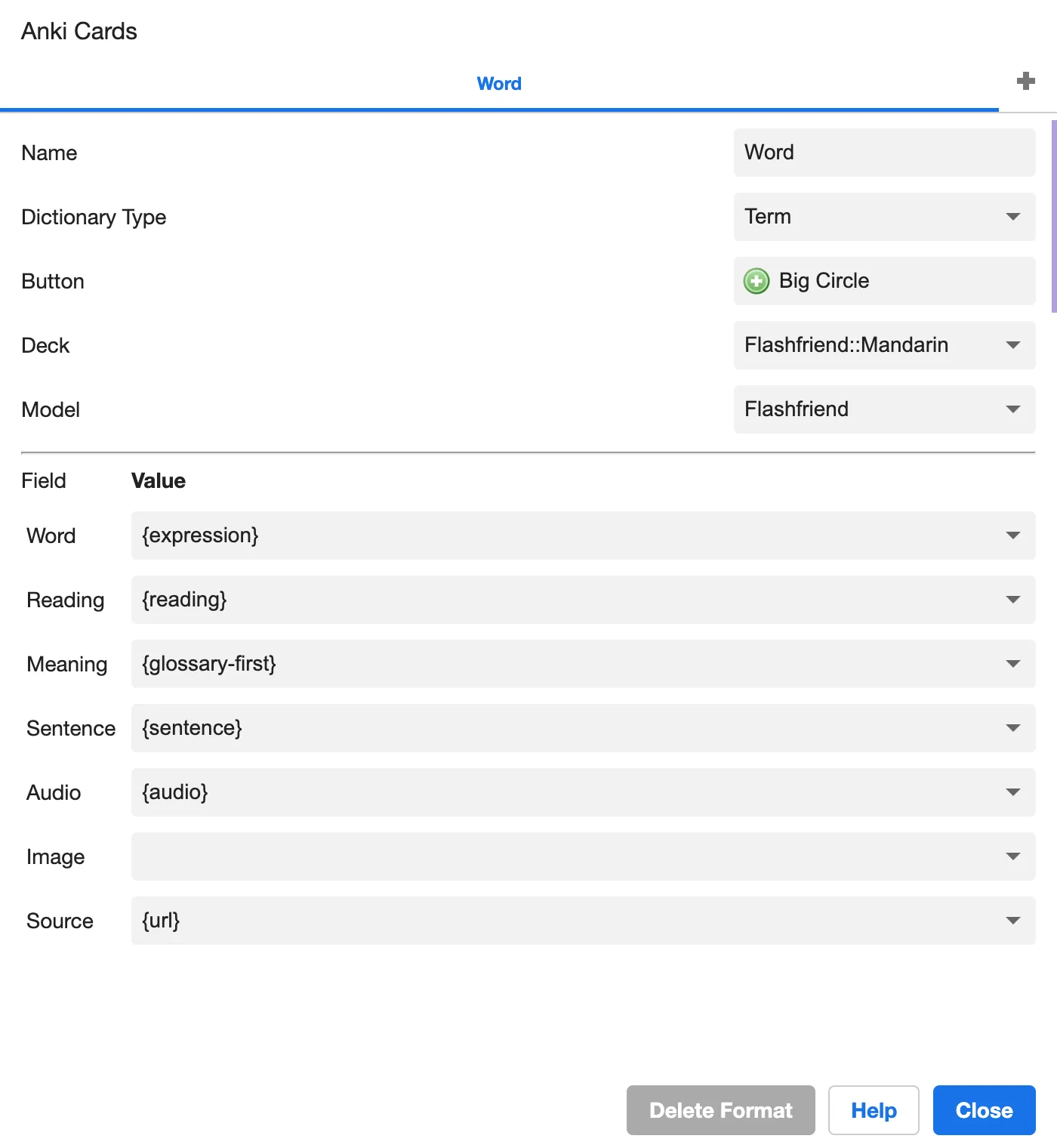
Still in Anki, click Configure Anki flashcards… and fill it in like this:
| Setting | What to choose |
|---|---|
| Deck | Flashfriend::Mandarin, Flashfriend::Japanese, Flashfriend::Spanish or Flashfriend::French |
| Model | Flashfriend |
| Word | {expression} |
| Reading | {reading} |
| Meaning | {glossary-first} |
| Sentence | {sentence} |
| Audio | {audio} |
| Source | {url} |
| Image | leave it empty |
Why leave Image empty? In Flashfriend, every card’s picture is one you make yourself. That’s what makes it stick.
The deck is the language the word is for: each language’s words land in its own Inbox, even when you’re learning another one right now.
Japanese: keep Word as {expression} (the dictionary form, written as usual) and Reading as {reading}
(its kana). Flashfriend puts the furigana over the kanji itself. If you’ve mapped Word to {furigana} already, that
works too: the reading is taken from it.
Spanish and French: there’s no separate reading, so Reading can stay empty.
That’s it. You’re ready.
Save your first word
Look up a word you don’t know yet and click the + next to it.
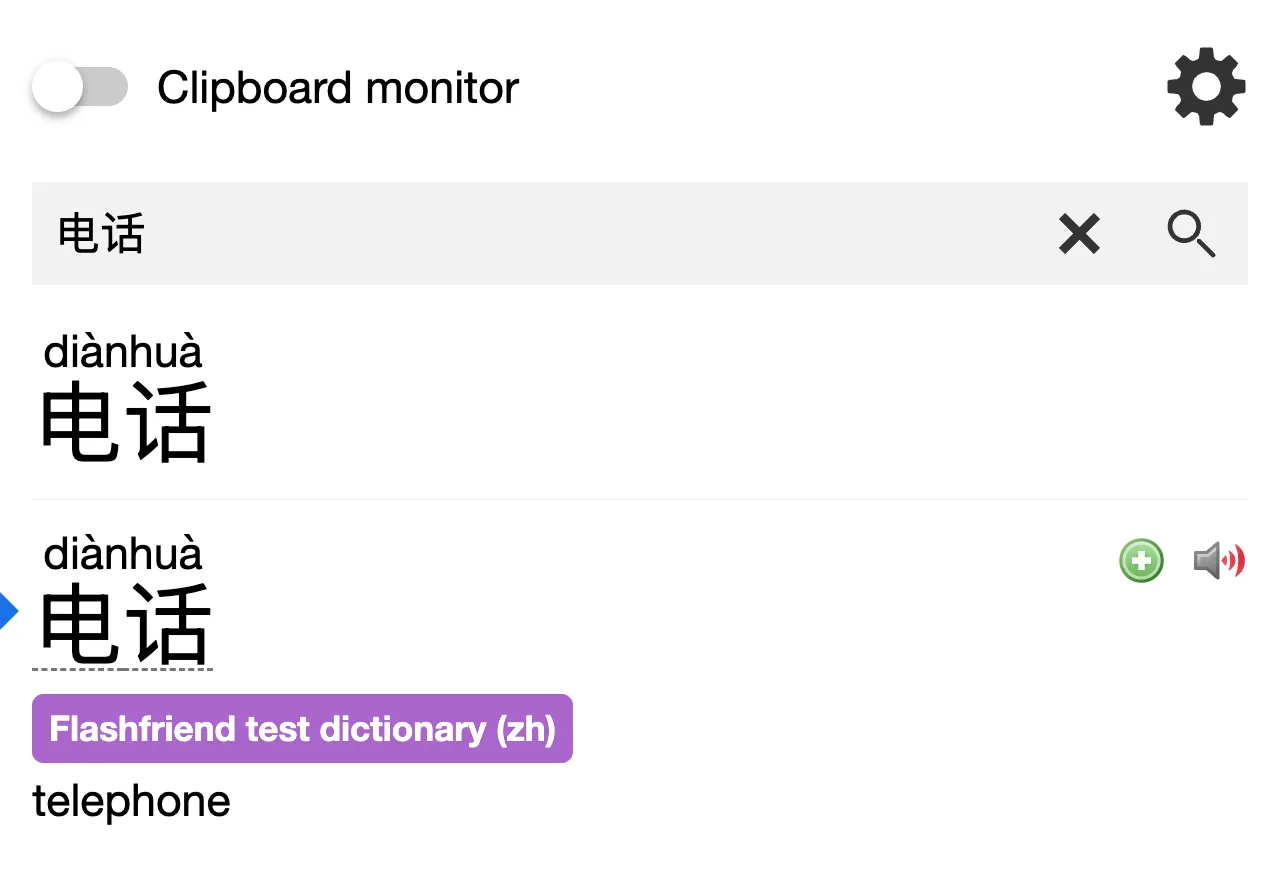
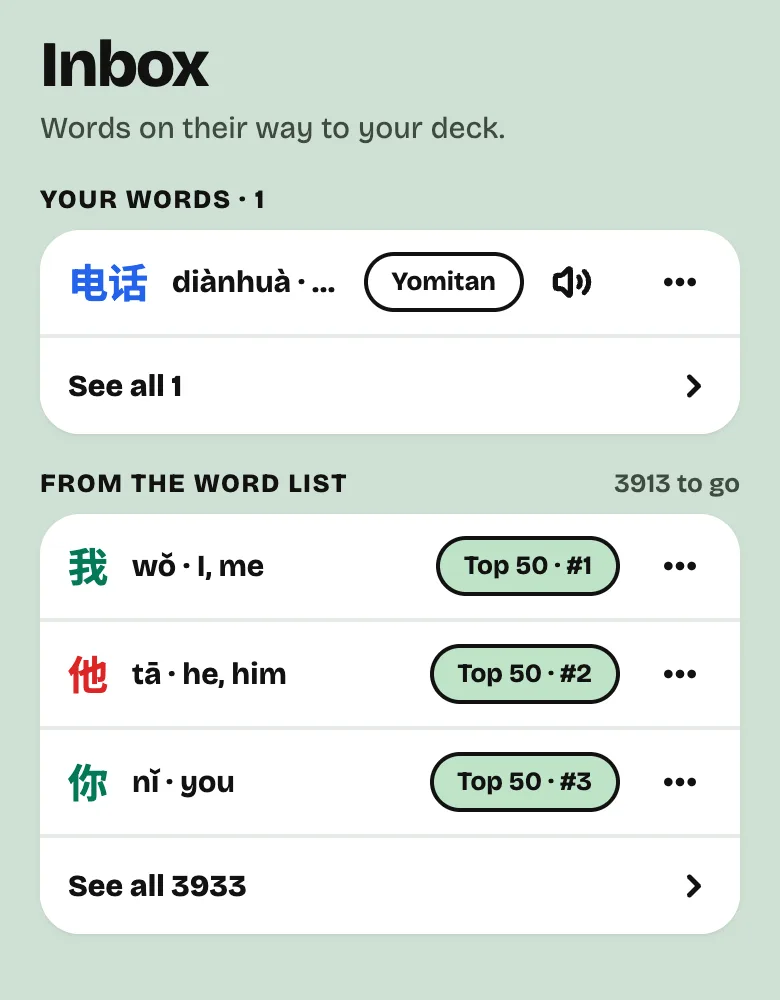
Open Flashfriend and there it is in your Inbox, with a Yomitan label and a play button for its sound. Tap it whenever you’re ready to make its card.
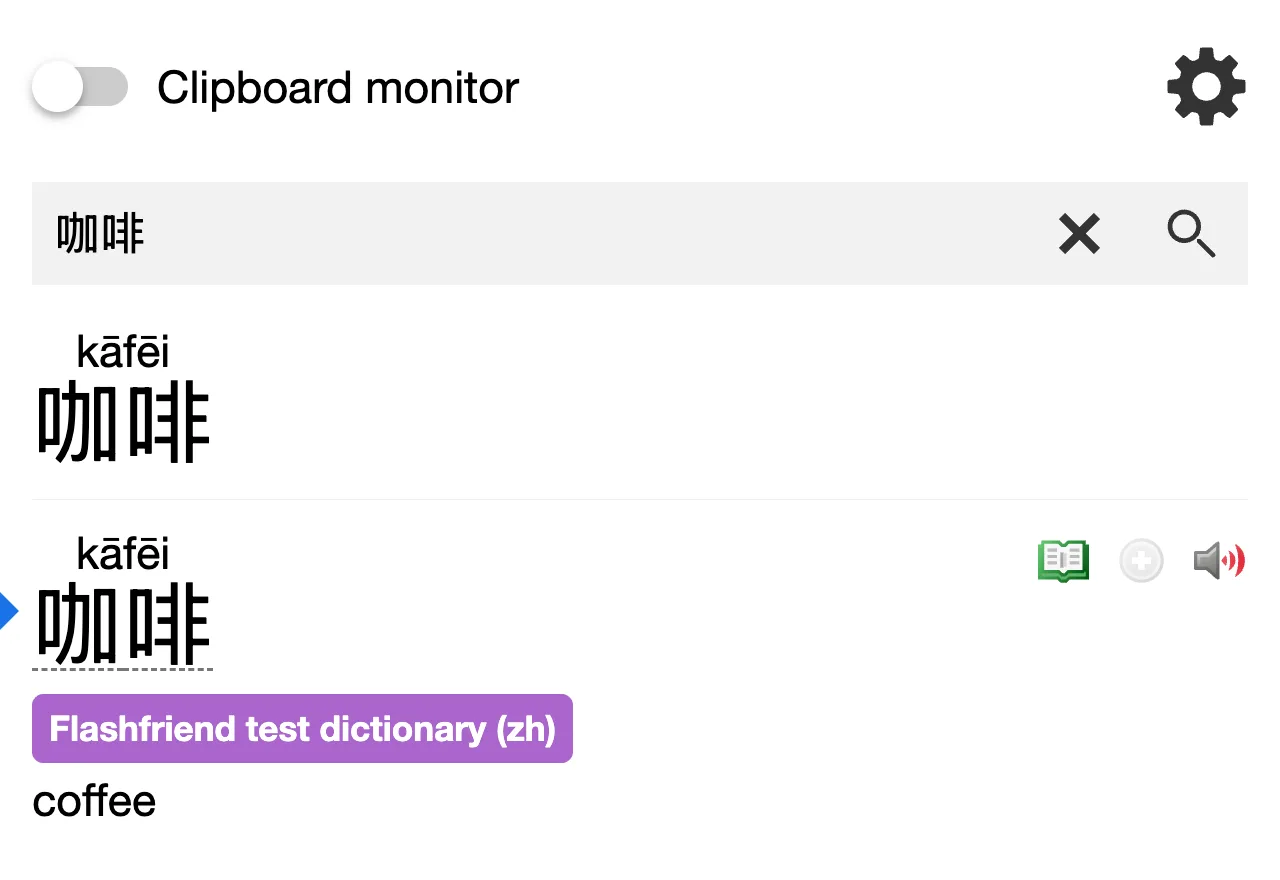
Already have a word? Yomitan knows. Instead of +, it shows a little book icon, so you never save the same word twice.
On a computer
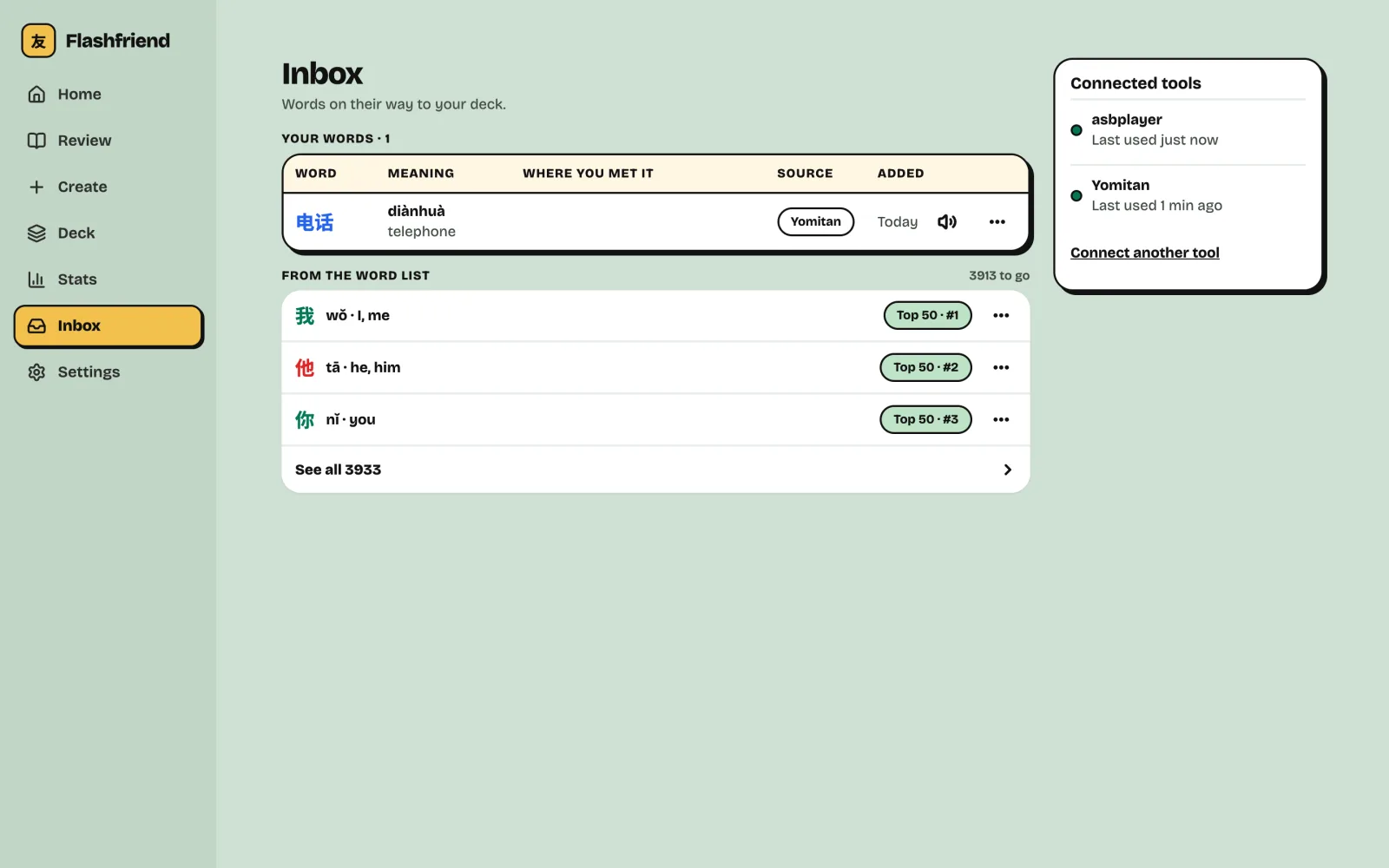
Flashfriend’s Inbox shows your words as a table, with the apps you’ve connected alongside.
Words you already know
If you’d rather Yomitan send you new sentences for words you already have, set When a duplicate is detected to Allow overwriting in Yomitan’s Anki settings. Your card stays just as it is. The new sentence shows up on that word in Deck, as a sentence you found: tap Add as example to see it under the answer when you review, or Hide to let it go.
If something’s not working
- Yomitan says the API key isn’t right. It may have a typo, or you may have turned that key off. Make a new key in Add words from other apps and paste it in again.
- The Deck and Model lists are empty. Check the server address. It should be exactly
https://app.flashfriend.app/anki. - I can’t see the API key setting. Turn on Advanced, at the bottom left of Yomitan’s settings.
- The word isn’t on my phone yet. It’s saved straight away. Your phone picks it up the next time Flashfriend syncs: open the app, or tap Settings › Saved to your account to sync now.
- Yomitan shows an error about suspending cards. Turn off Suspend new cards in Yomitan’s Anki settings. Flashfriend takes care of when each card comes up.
- The book icon doesn’t open anything. That’s fine: your word is already in your Inbox, or in Deck once it’s a card.